Items
This section enables you to:
-
View
-
Edit or Add (if enabled in Organization settings)
-
Export
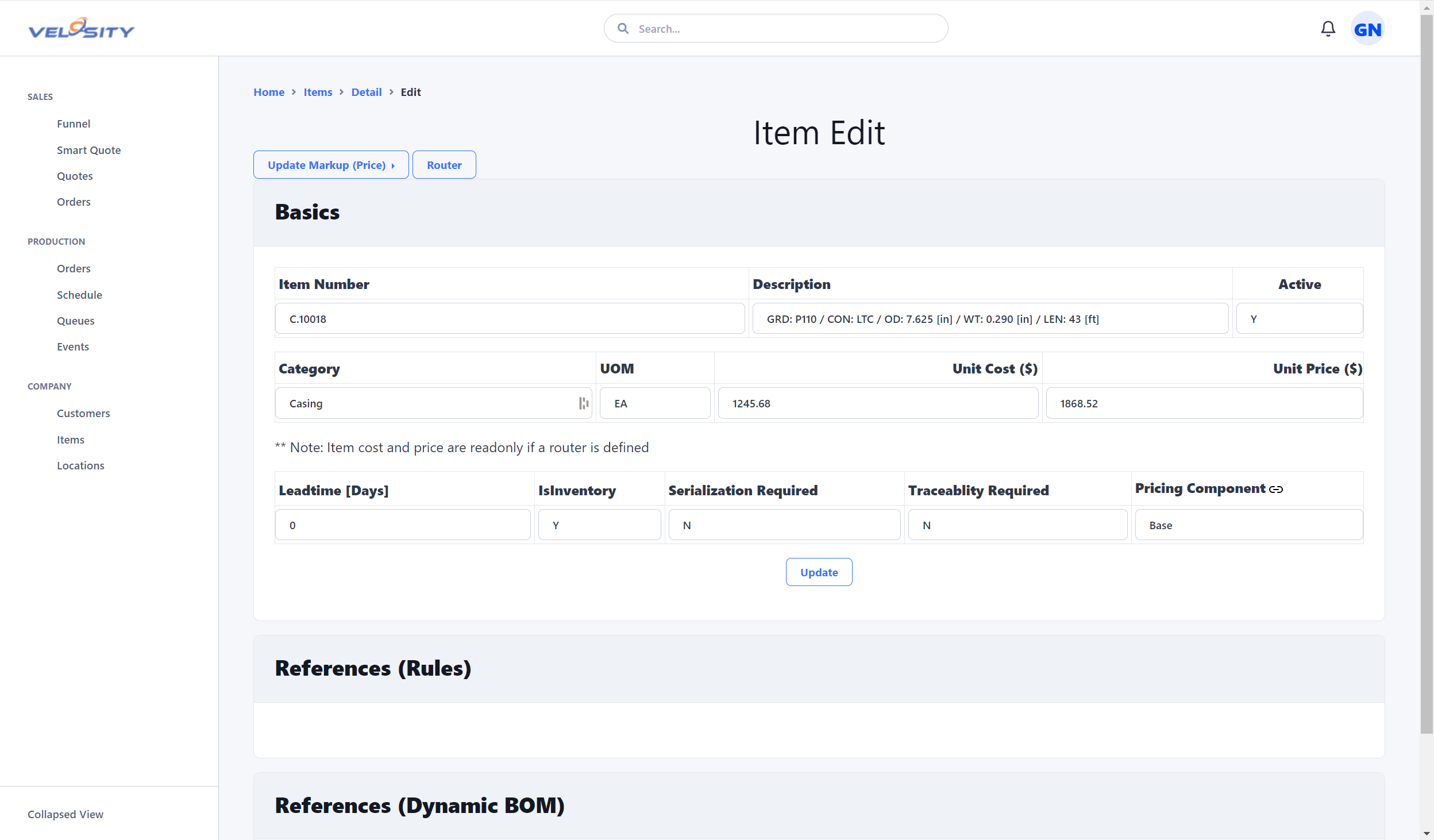
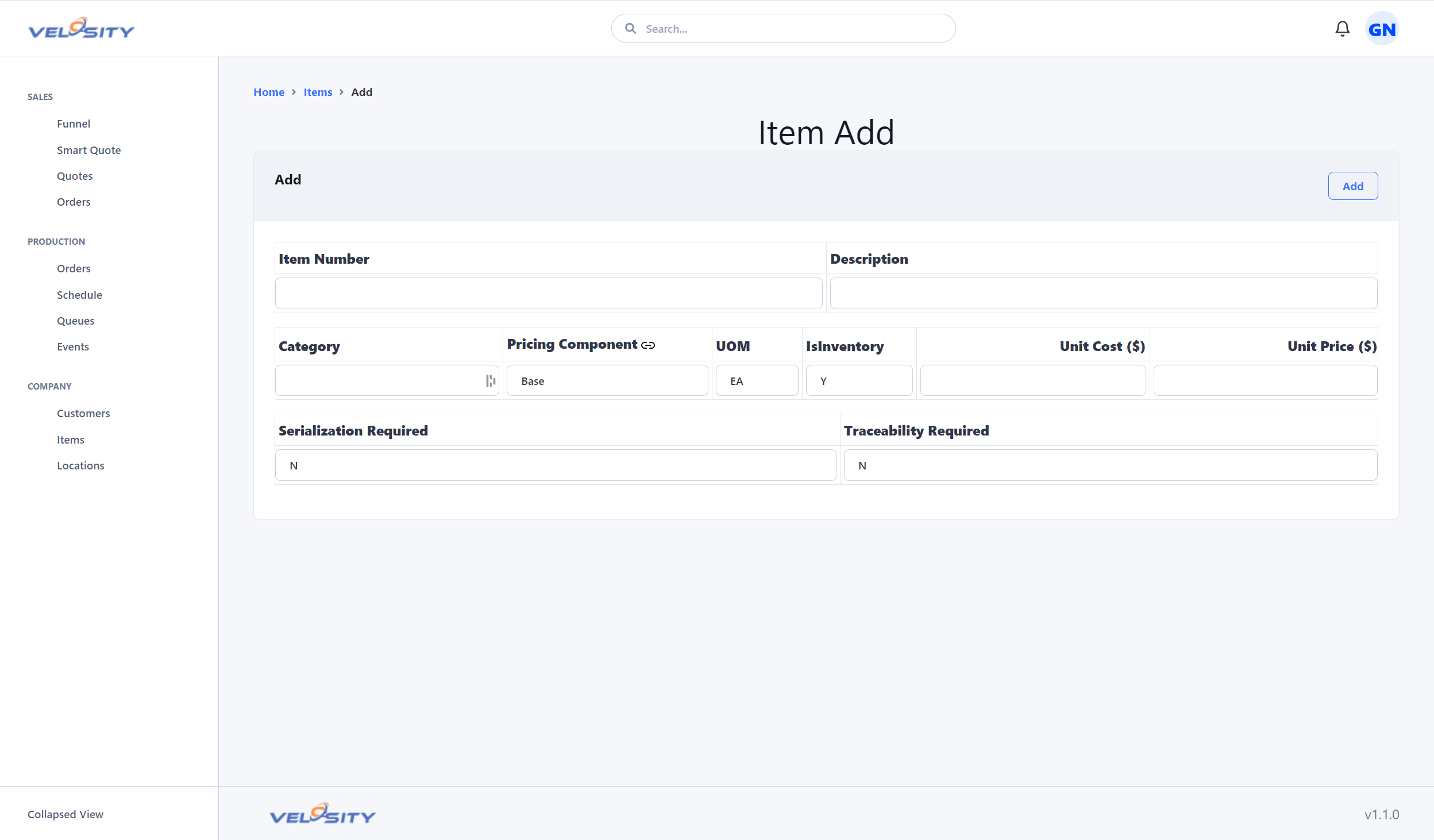
The ability to Add or Edit is determined by the settings (customization ) for your Organization. This is useful when Item (materials) data is primarily managed in another source -- in your ERP for example. This prevents users from adding or editing records that would be overwritten on the next refresh (import or via Velosity API).
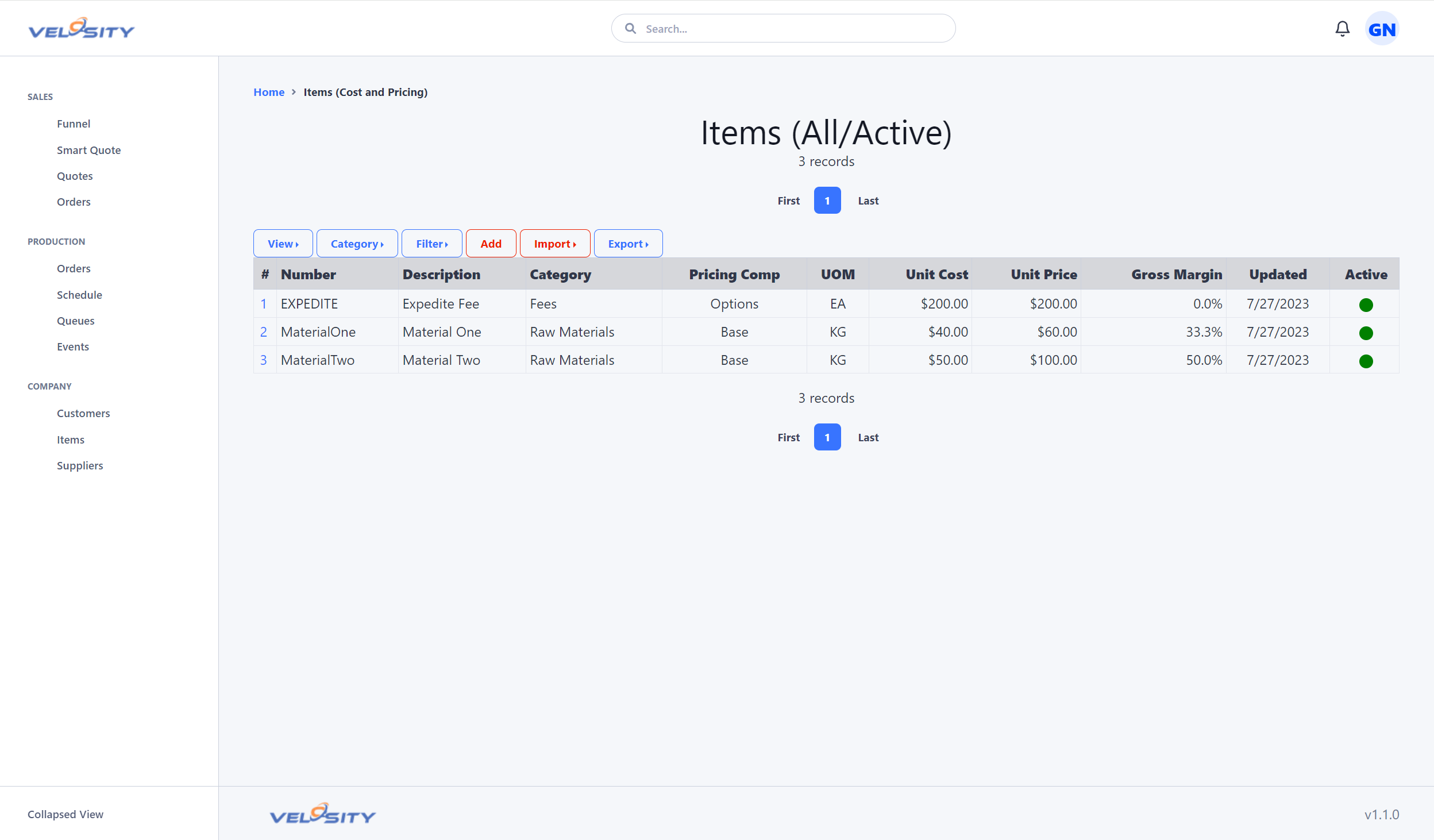
List
Detail
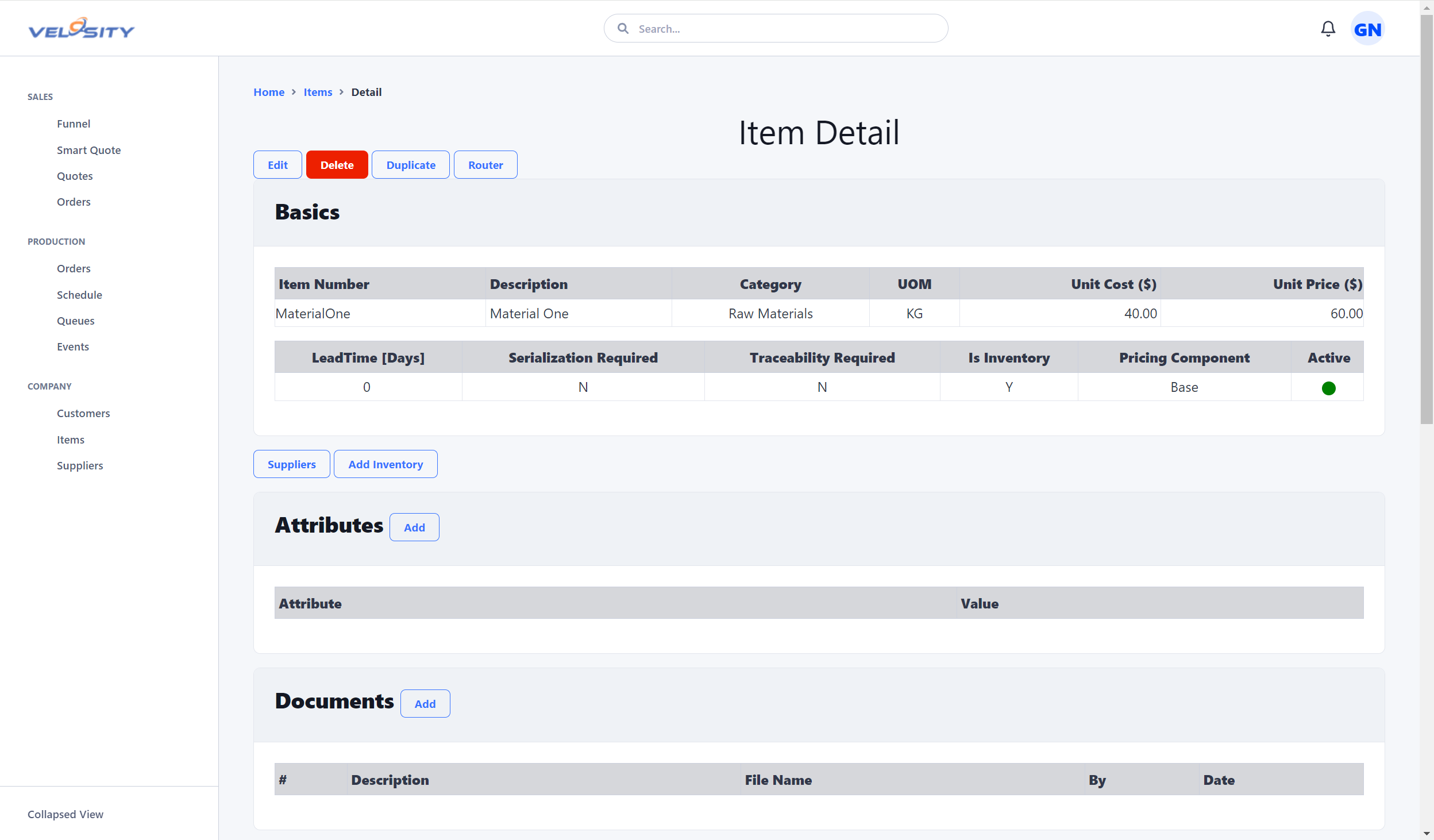
Lifecycle and availability
Lifecycle and availability describe different parts of an item's status. Use lifecycle to record where the item is in its product life, and availability to communicate whether it may be selected for new work.
| Field | Values | Use |
|---|---|---|
| Lifecycle Status | Planned, Active, Sunsetting, End of life, Retired | Identifies the item's stage in its product life. |
| Availability Status | Available, Limited, Restricted, Unavailable | Identifies the current selection or supply condition. |
| Availability Effective (UTC) | Date and time | Records when the availability decision takes effect. |
| Availability Reason | Text | Explains the availability decision. |
| Successor Item | Item | Links to the replacement item when one exists. |
| Status Updated (UTC) | Date and time | Records when the lifecycle or availability information was last changed. |
These values are independent. For example, a Sunsetting item can remain Available while existing demand is supported, or be Limited for a last-time buy. An End of life item is commonly Unavailable and can point to its replacement, but the values are recorded separately so that the catalog can represent the actual business decision.
Is Active remains a separate legacy catalog flag. It is still used to identify records that are active or deleted; changing lifecycle or availability does not automatically change it.
List filters
The Items list includes Lifecycle Status and Availability Status filters. Choose a value in either filter to show only items with that exact value; choose Any to leave that criterion unfiltered. The filters can be combined, so selecting Sunsetting and Limited shows only items that meet both conditions. The selected filters are retained while you work in the list.
List and detail views
The list is for finding the appropriate set of items by lifecycle and availability. Open an item to review its lifecycle status, availability status, effective date, successor item, and last status update. The detail view also shows the availability reason, which gives the operational context that the short status values cannot provide.
Lead Time (Standard Leadtime)
The Lead Time field (also referred to as Standard Leadtime) represents the standard time required to fulfill an order for this item.
- Quote/Order Sourcing: This is the primary source for the lead time displayed on Quote and Order line items.
- Production Schedule (TAT): This value is used as a target threshold for the Turnaround Time (TAT) flag in the Schedule view if a more specific Max Days Allowed is not defined.
Max Days Allowed
A configurable threshold specifically for the Production Schedule TAT flag. If set at the item level, it overrides the standard Lead Time for TAT calculations, allowing for specialized turnaround targets that differ from the fulfillment lead time.
Edit
Add
Price Breaks
Items can have defined price breaks based on quantity. These are used during the quoting process to automatically apply volume discounts. See the SKU Item Price Breaks guide for details.
- Quantity-Based: Discounts are triggered when a specific minimum quantity is reached.
- Ranges: You can define multiple price break ranges to cover various order volumes.
- Sorting: Price breaks are automatically sorted by minimum quantity for clarity.
Compatibility
Manage relationships between items, such as alternatives or accessories. See the Item Compatibility guide for details.
Analysis
The Items Analysis tools help you identify data quality issues and items that require attention from purchasing or sales. See the Items Analysis guide for details.
Search
You can search for an Item using the search bar at the top of the Velosity window. Using just a text string will return search results across all entities. You can restrict the search to just Items by using this syntax (case insensitive):
- it:searchtext
- IT:searchtext