Production Events and Labor Tracking
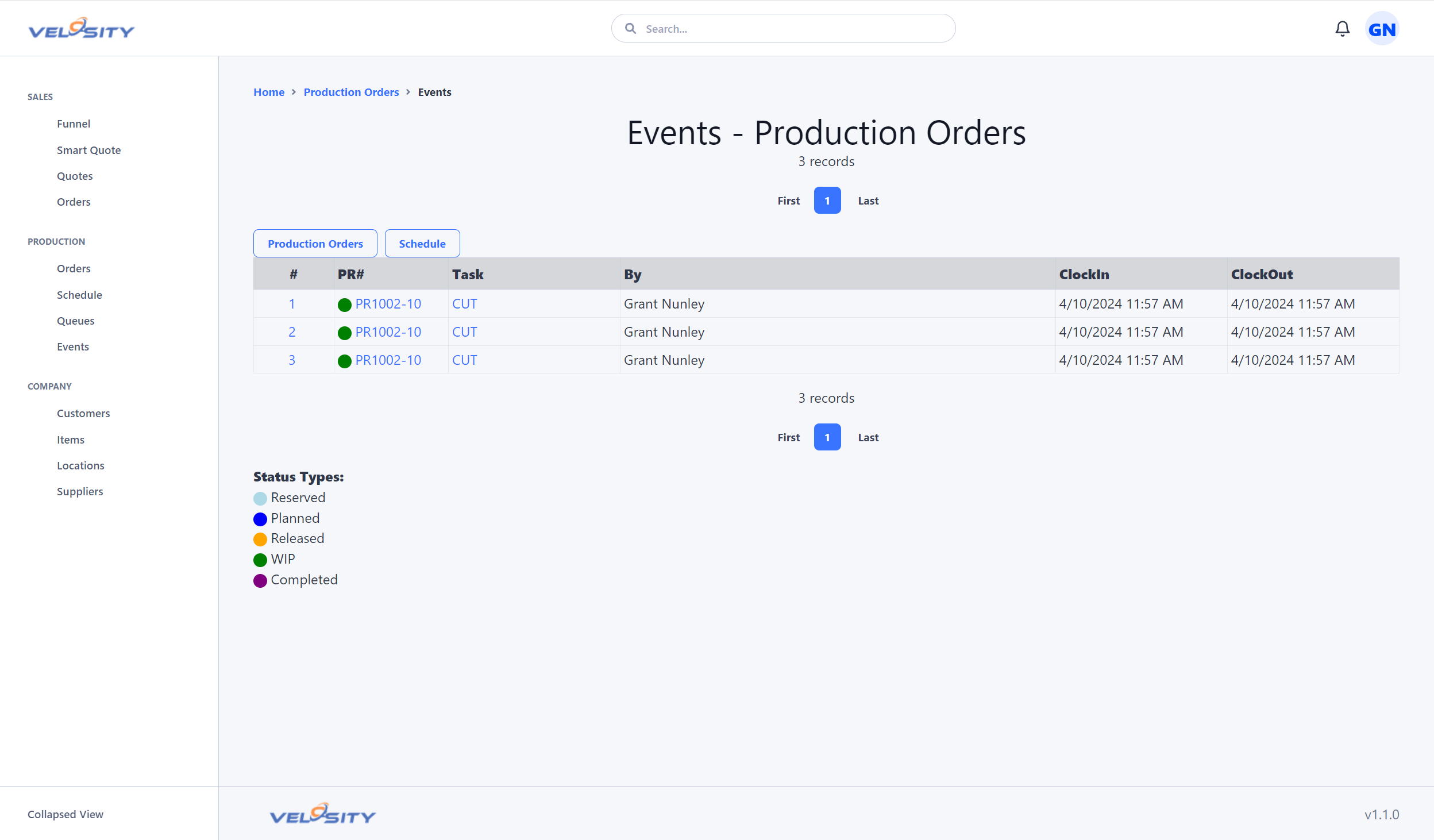
Events are Velosity's production-data record. They provide automated task-duration capture and a record of operational roadblocks for router analysis.
How Events are Captured
When an eligible task moves to WIP, Velosity can close the signed-in user's current task interval and open one on that task. Production-duration capture happens automatically as part of the work-status workflow.
Trigger Actions
The automatic work action is moving a task to WIP. The task must be eligible to work, normally the current in-sequence task. Detail access, documents, notes, messages, and file management do not generate a labor event.
What controls production-duration capture
Capture is associated with the signed-in user. The selected application role is not consulted by the current switch path, and a Resource/User link or Resource Group membership is not a prerequisite. Resource configuration remains important for scheduling and capacity, and supplies shift-end hours when a user is linked to an active Resource.
ADMIN and superuser accounts are deliberately excluded from CPQ's automatic switch call. Other non-ADMIN accounts can cause a switch by moving an eligible task to WIP. Viewing another technician's task does not affect the viewer's interval.
The Value of Event Data
The data collected through Events is used for more than just monitoring current work; it drives the continuous improvement of your entire operation.
1. Router estimate refinement
Validated event intervals provide actual duration for comparison with planned router time. Use those comparisons to refine task estimates. Task actual-start/actual-finish timestamps measure elapsed lifecycle time, not labor time.
2. Refining Smart Quote Estimates
The most powerful use of Event data is feedback for Smart Quote. If a specific operation (e.g., "Primary Welding") consistently takes 20% longer than the initial estimate, administrators can use historical Event data to adjust the Smart Quote rules. This ensures that future quotes are more accurate and profitable.
3. Identifying Bottlenecks
By analyzing Event logs across different workcenters, managers can identify where work is frequently stalling or where certain tasks are taking longer than expected.
Viewing and correcting events
The Events List view provides a chronological record of task intervals. Filter by date, user, task, product family, customer, or order to investigate anomalies. The analysis view also shows zero-duration and distribution patterns.
For router analysis, exclude and review records with:
- an end earlier than its start;
- a missing/open endpoint;
- an interval longer than the permitted working period;
- overlapping intervals for the same user; and
- a task, user, or time range that conflicts with corroborating production records.
Do not overwrite these rows silently. The recommended ADMIN correction workflow is a read-only exception worklist followed by a deliberate correction form. Each correction should preserve the original timestamps and values, require a reason and supporting reference, record the correcting ADMIN and UTC timestamp, and mark affected profitability snapshots stale for recalculation. Bulk repair should be previewable, filterable, and export its before/after audit log.
Until that correction experience exists, use the invalid-time worklist/export to identify exceptions and keep invalid intervals out of financial labor calculations rather than editing the ledger directly.