Adminstration - Items
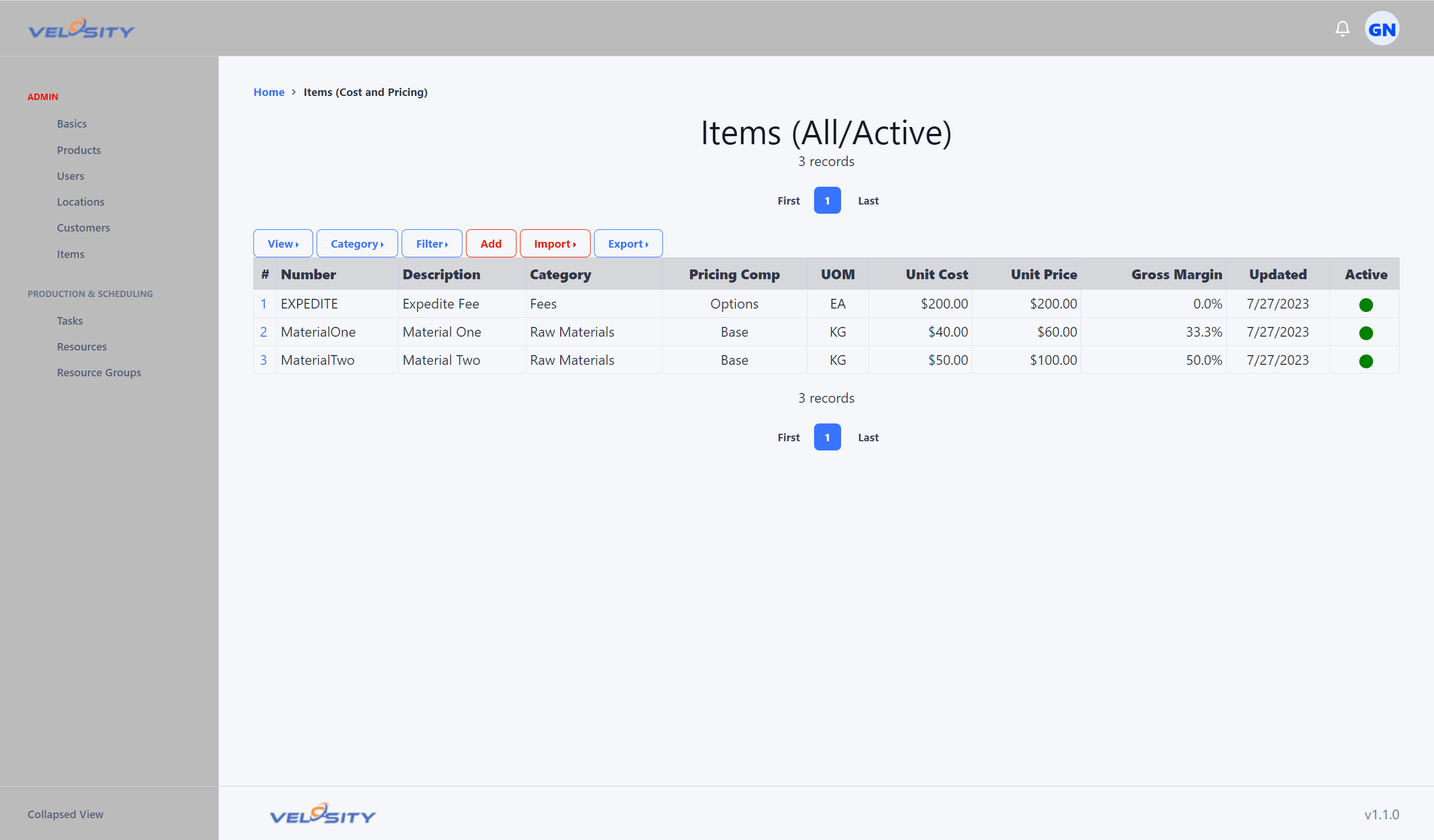
This section enables you to:
-
View
-
Edit or Add (if set in Organization settings)
-
Import
-
Export
The ability to Add or Edit is determined by the settings (customization ) for your Organization. This is useful when Item (materials) data is primarily managed in another source -- in your ERP for example. This prevents users from adding or editing records that would be overwritten on the next refresh (import or via Velosity API).
Import
Importing of item data from another source is possible via CSV files. Sample format here: - Item Import Format. You can export the current data (sample or yours) to get the currently support format.
Columns (any order / header spelling matters but case insensitive):
- Number
- Description
- UOM
- Category
- UnitCost
- UnitPrice
- Attributes
- Router
Import - Attributes Format
Attributes on Items serve two purposes:
1) Searchable 2) Can be used in Smart Quote to generate a list of valid values for a DROPDOWN Attribute
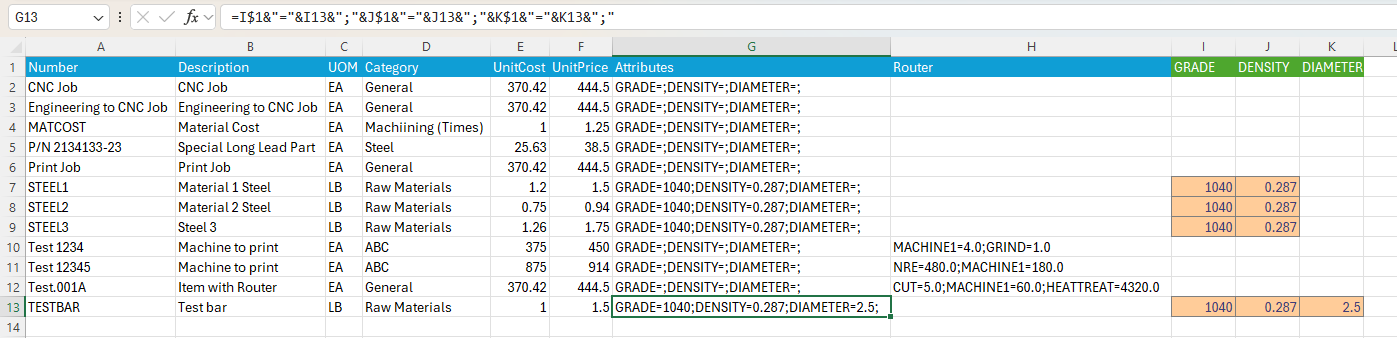
The format of the Attributes column when imporing data is: Attr1Name=Attr1Value;Attr2Name=Attr2Value
Product Finder uses imported Item Attributes directly as filter names and values. Review Setup / Item Attributes before importing and reuse its exact names so equivalent specifications do not split into separate filters. Smart Quote definition attributes are separate from this Item Attribute master.
Item Attributes establish product facts for discovery; they do not validate Item pricing. Product Finder should remain in discovery-only mode unless the Item catalog has governed pricing with an approved source, currency, effective period, and review status.
An easy way to build this column in Excel is to use a formula like this:
Items Import Attributes Formula
Import - Router Format
The format of the Router column when imporing data is: Task1Name=Task1Time;Task2Name=Task2Time
If the Task name is not found in Setup/Tasks, the datapair (name/value) will be ignored
An easy way to build this column in Excel is to use a formula like this: